
You've probably got the document already. It's the intake form, the contractor agreement, the employee acknowledgment, the disclosure packet, or the onboarding checklist you've edited five times and finally like. Then the messy part starts. Someone types in the wrong place, the layout shifts, a box gets skipped, the PDF comes back as a blurry scan, and the signature is pasted in as an image from a phone gallery.
That's usually the point where people search for how to make a fillable form. What they often find is half the answer. Most tutorials show how to place fields in Word or a PDF editor, then stop. One notable example on Sejda's PDF forms page points out that you can publish a shareable link so “anyone with the link can open the form, fill it out, and send it back by email,” which highlights the fundamental operational gap: building the file is only part of the job (Sejda PDF forms workflow).
A usable form has a full lifecycle. It needs the right structure, the right tool, a clean way to collect responses, and, for agreements, a proper signature process that holds up under U.S. e-signature rules. That's often where time is lost. Not in the creation itself, but in everything that happens after.
Table of Contents
- Beyond the Blank Page Why You Need a Fillable Form
- Choosing Your Form Creation Tool
- Building Document-Based Forms in PDF and Word
- Mastering Web Forms for Easy Data Collection
- Pro Tips for User-Friendly and Secure Forms
- From Fillable Form to Signed Document with SignWith
Beyond the Blank Page Why You Need a Fillable Form
A static document looks finished until another person touches it.
That's the core problem. A freelancer sends a client questionnaire in Word. The client replies with answers typed between lines, different fonts, and comments in the margin. A small business emails a PDF application form. Half the recipients print it, handwrite it, scan it, and return crooked pages with missing fields. An HR coordinator sends a policy acknowledgment and gets back three versions of the same file with names typed into the header instead of the signature line.
None of that means the document was bad. It means the document wasn't built for controlled input.
A fillable form fixes that by separating what should stay fixed from what the recipient should complete. The layout stays intact. The response areas become defined fields. The experience gets simpler for the person filling it out, and the data comes back in a more predictable shape for the person collecting it.
Practical rule: If the same document gets reused and someone else has to type into it, it should probably be a fillable form.
The payoff is operational, not cosmetic. Teams use fillable forms to reduce follow-up, avoid accidental edits, and make sure every recipient interacts with the same structure. That matters for contracts, vendor forms, intake packets, approvals, and disclosures where missing or misplaced information creates delays.
The bigger issue is what happens after the form is built. A lot of businesses solve the field-placement problem and still leave themselves with inbox chaos, version confusion, and no reliable path to a completed signature. That's why the best way to think about forms isn't “how do I add boxes to a document?” It's “how do I create a repeatable workflow from blank template to completed record?”
Choosing Your Form Creation Tool
The tool matters more than generally assumed. Not because one platform is universally better, but because each one assumes a different end use.
If the form needs to look like a contract, disclosure, or branded document, start with a document-based tool. If the form is mainly for gathering structured responses and exporting them cleanly, use a web form. Problems show up when teams choose the familiar tool instead of the right one.
Match the tool to the job
PDF editors are usually the best fit when layout control matters. They keep the design fixed, which makes them a strong choice for agreements, applications, and packets that need to look the same for every recipient. They also handle existing files well, especially when you already have a form designed in Word, Canva, or another layout tool.
Microsoft Word is often the fastest place to start owing to its widespread familiarity. Word supports content controls like text boxes, check boxes, date pickers, and drop-down lists, and forms can be created in a blank document or template. That makes it practical for internal forms and simple repeat-use documents. It can also be enough for external use if you protect the document properly and test it in the way recipients will open it.
Google Forms works best when the form is really a questionnaire. Registrations, internal requests, surveys, lead intake, event follow-ups, and feedback collection fit this model. It doesn't give you a fixed page design like a PDF or Word document, but it does make response collection much easier because entries are aggregated automatically.
One common mistake is trying to make one tool do every job. I've seen teams force Google Forms into contract workflows and force Word into high-volume response collection. Both choices create friction.
If you're building an HTML-based form and need a lightweight solution for handling form submissions, that kind of approach can be useful for simple website workflows where you don't need document formatting.
For people comparing broader form and signing stacks, this breakdown of Jotform vs DocuSign is useful because it shows how data collection tools and signature tools often solve different parts of the workflow.
Form Creation Tool Comparison
| Feature | PDF Editors (e.g., Acrobat) | Microsoft Word | Google Forms |
|---|---|---|---|
| Best for | Contracts, applications, disclosures, formal documents | Internal forms, reusable office documents, basic form templates | Surveys, registrations, feedback, simple intake |
| Layout control | Strong. Fixed page layout | Good, but can shift across devices or versions | Limited. Web form layout only |
| Ease of creation | Moderate. Good once you know field tools | Familiar for most office users | Very easy |
| Works from existing files | Yes. Strong option for converting static documents | Yes. Best when building from document templates | No document conversion workflow |
| Response collection | Varies by tool. Often more manual | Usually manual unless paired with another workflow | Built in and easy to manage |
| Best for signatures | Strong starting point for signing workflows | Acceptable starting point if exported cleanly | Poor fit for formal signature documents |
The fastest form to build isn't always the fastest form to operate.
That's the trade-off worth remembering. Creation speed matters, but so do return rates, cleanup time, formatting stability, and how easily you can move the document to approval or signature.
Building Document-Based Forms in PDF and Word
If your form needs to look like a document people recognize, this is the path to use. Contracts, onboarding packets, waivers, disclosure forms, and acknowledgments usually work better as Word or PDF-based forms than as web forms.
How Word forms actually work
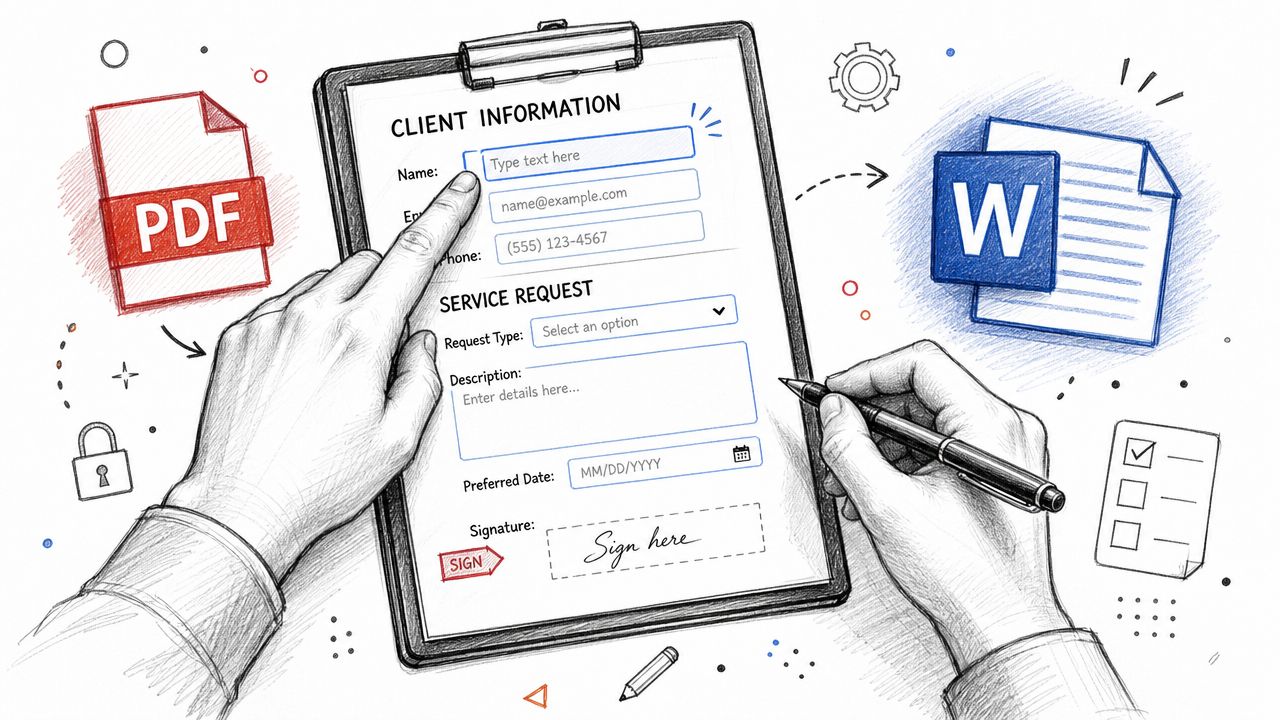
Word is more capable than people give it credit for. Microsoft explains that users can create forms with content controls such as text boxes, check boxes, date pickers, and drop-down lists, then restrict the document to “Filling in form” so recipients can complete fields without editing the document itself (Microsoft Word form controls and protection).
In practice, the workflow is straightforward:
- Start with the final layout. Don't add controls to a draft. Finish the wording, spacing, and page structure first.
- Enable the Developer tools in Word so you can insert form controls.
- Place the right control for the right response. Use text fields for open entry, check boxes for yes/no or acknowledgments, date pickers for dates, and drop-downs where you want standardized answers.
- Name and format fields clearly so users understand what belongs where.
- Restrict editing so the document behaves like a form instead of an editable template.
- Test the form as a recipient, not as the creator.
What fails in Word is usually not the field setup. It's skipping protection, overdesigning the page, or assuming every recipient will open the file in full desktop Word.
If a user can click into your headings and delete them, you haven't built a form. You've sent a template.
For spreadsheet-heavy processes, such as structured internal data entry, Orbit AI's Excel form tutorial is a useful companion because some teams are better served by table-based collection than by document-style forms.
How to turn a static file into a fillable PDF
PDF is the better option when you need the document to stay visually stable.
Adobe's workflow is to open an existing file, turn on Auto-detect form field, let the software detect likely fields, and then clean up what it missed. Adobe notes this can work with source files from Word, Excel, InDesign, or existing PDFs, which is why PDF remains the practical bridge from static document to fillable form in a lot of business workflows (Adobe Acrobat fillable form creation).
That matters for a simple reason. Most businesses don't start from zero. They already have:
- A Word document someone has used for years
- A designed PDF exported from another tool
- A scanned paper form that still needs to be digitized
- A branded form built by marketing or legal
A PDF editor lets you preserve that base document and layer fields onto it. After auto-detection, clean up the result manually. Resize fields. Rename them logically. Align checkboxes. Delete false detections. Add missing date or signature fields. Then test the finished file in a proper PDF viewer.
For readers specifically working on signature placement inside PDFs, this guide on adding a digital signature block to a PDF is useful because signature fields need different handling than ordinary text inputs.
What works best in practice
The easiest operational rule is this:
- Use Word when the form is simple, internal, and likely to stay inside a Microsoft-based environment.
- Use PDF when the file leaves your organization, needs consistent formatting, or might be opened on different devices.
- Convert first, then refine when you already have a static document people know.
A few habits make a big difference:
- Keep labels close to fields so no one has to guess where an answer belongs.
- Use drop-downs sparingly because too many choices slow completion.
- Avoid tiny fields for names, addresses, and explanations.
- Leave enough visual space around checkboxes and signature areas.
Don't confuse “fillable” with “finished.” A field-enabled document is only the midpoint. You still need collection, review, and, for agreements, a proper signature workflow.
Mastering Web Forms for Easy Data Collection
Web forms solve a different problem. They aren't trying to preserve a page layout. They're trying to make submission easy and response handling clean.
When Google Forms is the right choice
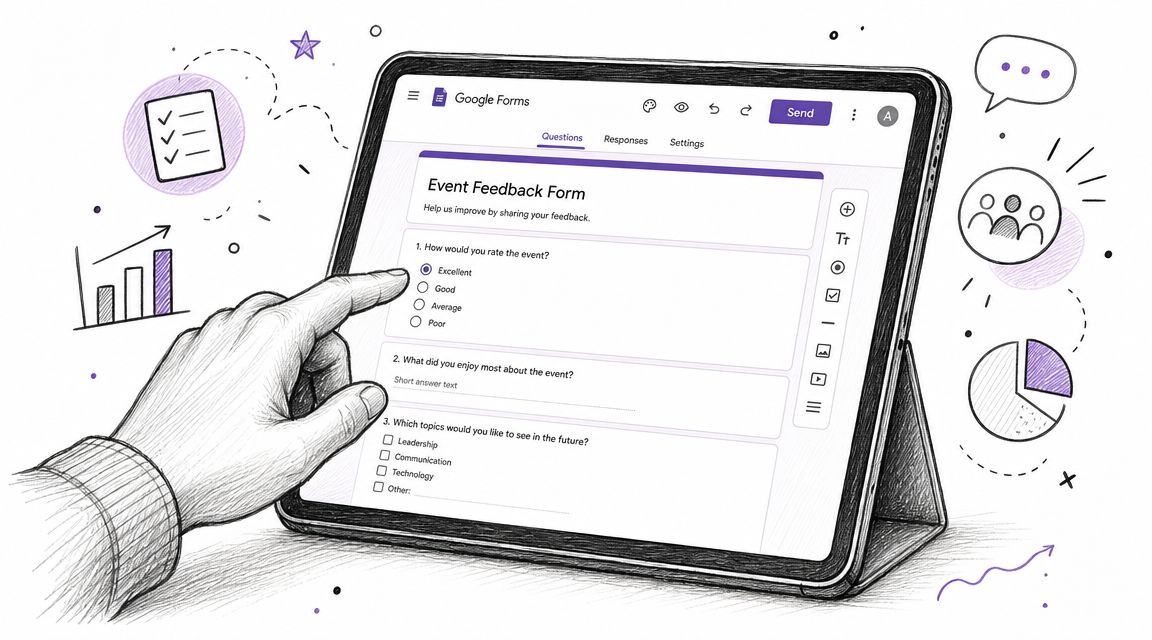
Google Forms works well when you need answers more than you need a document. It's a strong choice for event registration, customer feedback, internal requests, simple intake, and staff questionnaires.
The operational advantage is response handling. The Illinois Governmental Ethics Act guide describes Adobe's distribution wizard creating exactly two files, one with “_distributed” for sending and one “_responses” for collected data, which reflects a structured collection workflow rather than one-off document handling (Illinois guide to distributed fillable PDF response collection). Web forms automate that same idea by default. You send one live form and collect responses in one organized place.
That's why Google Forms feels so much easier for recurring intake. The collection layer is built in.
A simple build process that stays manageable
A clean Google Forms setup usually follows this order:
- Start with the decision you need to make. Don't begin with questions. Begin with the outcome.
- Choose the smallest useful field type. Short answer for names and email. Multiple choice when answers should be standardized. Paragraph only when explanation matters.
- Group questions by task. Contact details first. Request details next. Uploads or confirmations last.
- Use required fields carefully. Mark only what you need to proceed.
The common mistake is overbuilding. If every question is required and every section is long, completion drops and the quality of responses gets worse.
This walkthrough may help if you want to see the interface in action:
Google Forms still has limits. It won't replace a polished agreement, disclosure, or packet that needs to look fixed and formal. It also isn't the right container for a legally binding signature process on a document. Use it when collection is the priority. Use document-based forms when the file itself matters.
Pro Tips for User-Friendly and Secure Forms
Most form problems aren't technical failures. They're design failures that show up as user mistakes.
A field can exist and still be hard to use. People skip it, misunderstand it, or enter the wrong thing because the label is vague, the order is odd, or the file behaves differently on their device than it did on yours. That's why teams that build forms regularly spend as much time on testing and cleanup as they do on adding fields.
Good forms reduce hesitation
A strong form removes uncertainty line by line.
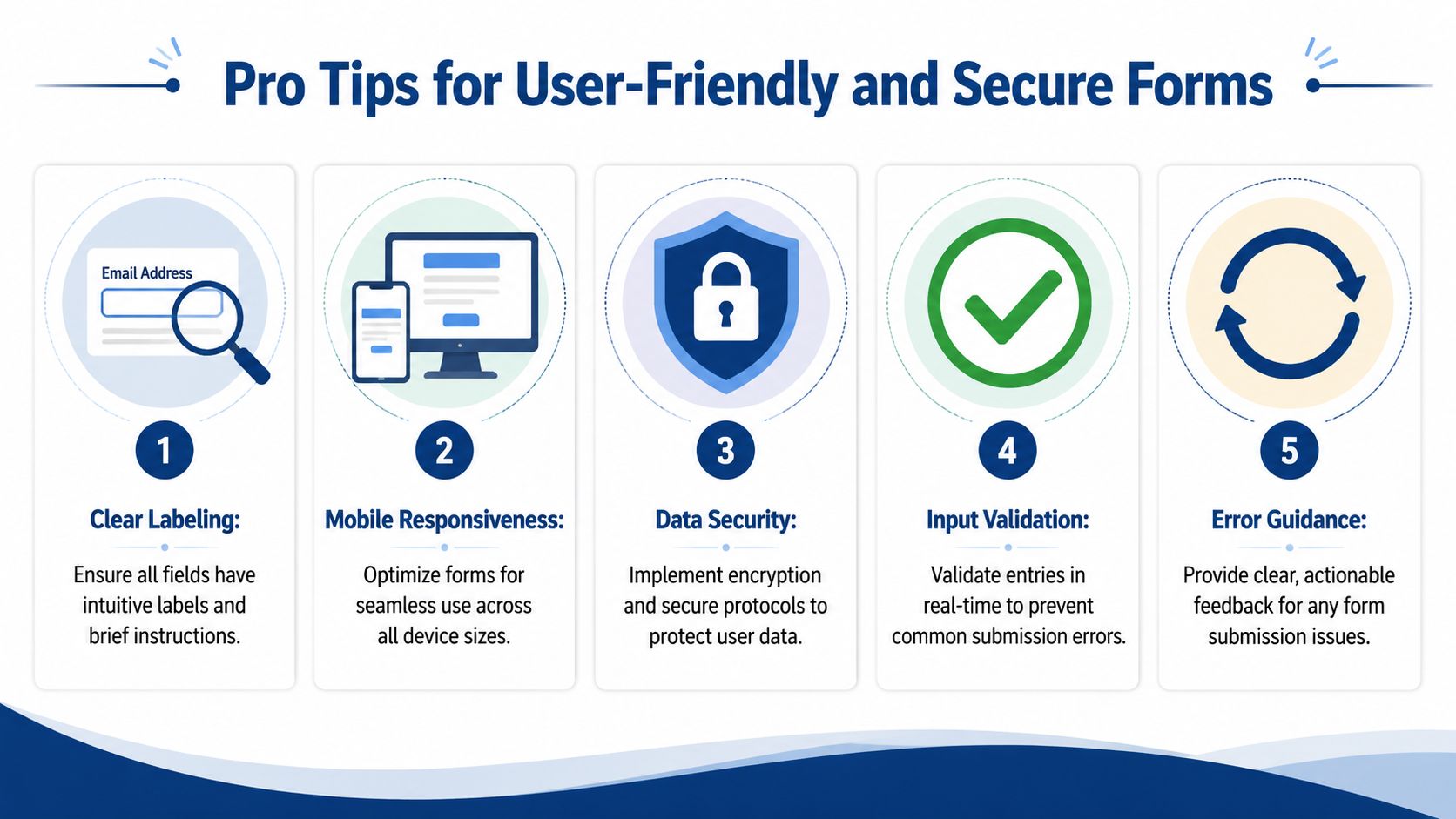
Use labels that answer the question before the user has to ask it. “Phone” is weaker than “Mobile number for scheduling updates.” “Date” is weaker than “Start date.” If a field has a format expectation, say so in the label or helper text.
A few habits consistently help:
- Keep the tab order logical so users can move through the form without jumping around the page.
- Match field size to expected input. A ZIP code field shouldn't look like an essay box.
- Separate instructions from legal text so people can scan the form without missing action items.
- Flag optional fields clearly when not every blank needs an answer.
Clear labels do more for completion quality than fancy styling.
Testing is part of form design
An RPI guide warns that if you don't restrict editing, recipients may edit the document itself instead of only filling fields. The same guidance emphasizes testing because a form isn't fillable unless it behaves correctly in the recipient's software, and compatibility issues are common enough that testing in Adobe Acrobat Reader is recommended after creation (RPI guidance on restricting editing and testing fillable PDFs).
That recommendation lines up with what goes wrong in practice. Browser previews can behave differently from desktop PDF viewers. Mobile apps may display spacing differently. A Word form that behaves perfectly on your machine may fall apart when opened in another app.
Test like the recipient:
- Open the form in the software they're likely to use
- Type in every field
- Check tab order and field alignment
- Save, close, reopen, and confirm entries remain intact
- Try it on a phone if recipients are mobile-heavy
Security starts with control
Restricting editing is basic hygiene. It keeps the structure intact and prevents accidental document damage.
But form security doesn't end there. Sensitive forms need controlled distribution, clear ownership of the final copy, and a reliable record of what was completed and when. Email attachments alone don't give you much of that. They're easy to forward, duplicate, or lose in version confusion.
That's why form quality and workflow quality are tied together. A document can be beautifully built and still be weak operationally if the handoff, collection, and approval process are informal.
From Fillable Form to Signed Document with SignWith
The document is built. The fields work. The recipient can fill them out.
Persistent issues plague many workflows. The form gets emailed as an attachment, returned under a new filename, forwarded for approval, downloaded again, signed in the wrong place, or bounced back because no one knows which version is final. A fillable form solves data entry. It doesn't solve execution.
Why completed forms still break down
Signing is a different step with different requirements.
A business form that ends in approval, consent, or agreement needs more than editable fields. It needs a controlled signature process, status visibility, and proof that the completed document is the final one. For teams that care about evidence and signed PDF standards, this overview of audit-ready PAdES evidence is worth reading because it clarifies why completion records matter after the form itself is filled.
If you've ever chased a signature over email, you know the operational pain points:
- No clear status about who has signed and who hasn't
- No signing order when multiple people are involved
- No easy mobile experience for signers
- No clean audit trail when the file comes back
Those problems don't come from bad form design. They come from stopping the workflow too early.
A cleaner finish for signature workflows
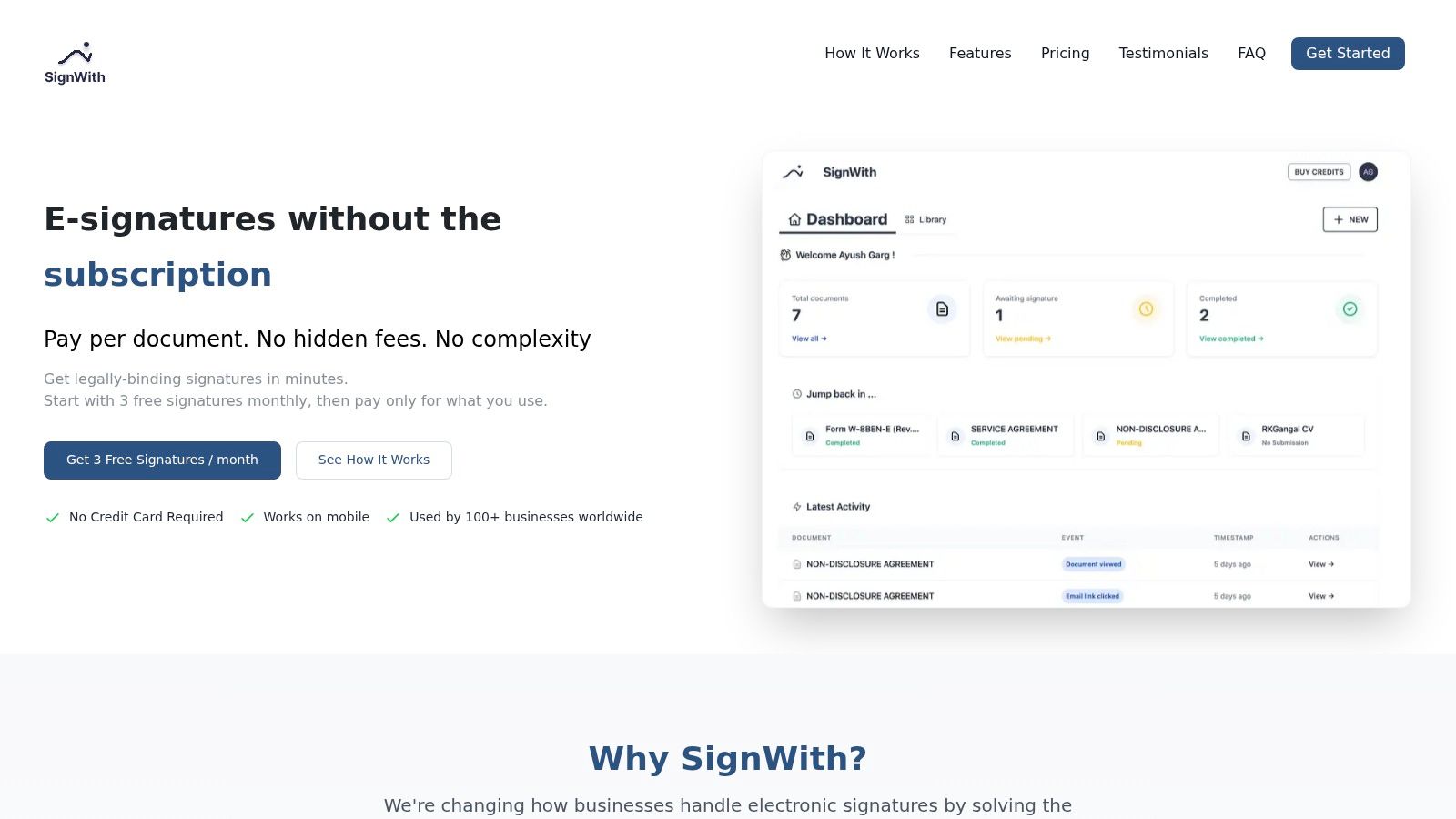
The practical finish is to move the completed document into an e-signature workflow built for execution. Upload the PDF, place the signature and any remaining required fields, assign recipients, set the signing order if more than one person needs to act, and send a secure signing link. The signer shouldn't need an account. The sender should be able to see status without asking for updates manually.
For U.S. business use, the compliance point is straightforward. The signature process needs to align with ESIGN Act and UETA standards if you want legally binding electronic signatures in the normal course of business. It also helps to have a complete audit trail, archived copies, and a record of the completed transaction rather than just a signed-looking file.
That's the missing piece in many articles about how to make a fillable form. The form is only the container. The business outcome is a completed, signed, traceable document.
If you just need a lightweight way to sign a document without adding a larger system, the free eSignature tool from SignWith is a practical option for occasional use.
If you've got forms sitting in Word files, PDFs, or old email attachments, turn them into a workflow that finishes. SignWith lets you upload documents, place fields, send them for signature, and collect legally binding e-signatures under ESIGN Act and UETA standards without a subscription-heavy setup.
