
A PDF shows up in your inbox five minutes before a call. It needs a signature today. You're on a Mac, you don't want to print anything, and you definitely don't want to turn a simple task into a half-hour detour.
That's the moment many users search sign a pdf mac and end up with a basic click path that only solves part of the problem. The key question usually isn't just how to place a signature. It's which method will hold up for the kind of document you're dealing with.
For a one-off form, Apple's built-in tools are often enough. For heavier PDF work, Adobe Acrobat makes more sense. For contracts, approvals, and documents that move between multiple people, an online e-signature workflow is usually the cleaner option. If you need a quick refresher on the simplest route, this guide on how to sign a PDF document covers the basic path well.
Table of Contents
- That Urgent Document Just Landed in Your Inbox
- The Default Mac Method Using Preview
- Upgrading to Adobe Acrobat for PDF Power Users
- Modern Cloud-Based Signing with Online Tools
- Sending Documents and Managing Signer Workflows
- E-Signature Security Compliance and Best Practices
That Urgent Document Just Landed in Your Inbox
The usual scenario is boring until it isn't. A client sends an NDA. A new hire needs paperwork back before the afternoon. A landlord, broker, or accountant emails a PDF and says, “Please sign and return.”
If you haven't dealt with this in a while, the old print-sign-scan habit comes back fast. It's familiar, but it's also slow, messy, and easy to botch when your scanner app crops the page badly or your signed copy comes back looking like a faded fax from another decade.
Mac users are in a better position than they often realize. Apple has offered a native PDF signing path for years through Preview, Markup, and related first-party surfaces like Mail and Quick Actions, as described in Apple's Preview fill and sign guide for Mac. That matters because you can usually sign and return a document without installing anything at all.
Practical rule: Don't choose a signing tool based only on speed. Choose it based on what happens after you sign. Will you edit again, send to others, or need a record of who signed what?
Generally, there are really three lanes:
- Built-in Mac signing: Best when you just need your own signature on a PDF and want it done now.
- Adobe Acrobat: Better when the document needs more form filling, markup, or broader PDF handling.
- Online e-signature tools: Better when the document needs routing, tracking, or stronger proof around the signing process.
That distinction saves time because the fastest tool for one signature isn't always the right tool for a client agreement or onboarding packet.
The Default Mac Method Using Preview
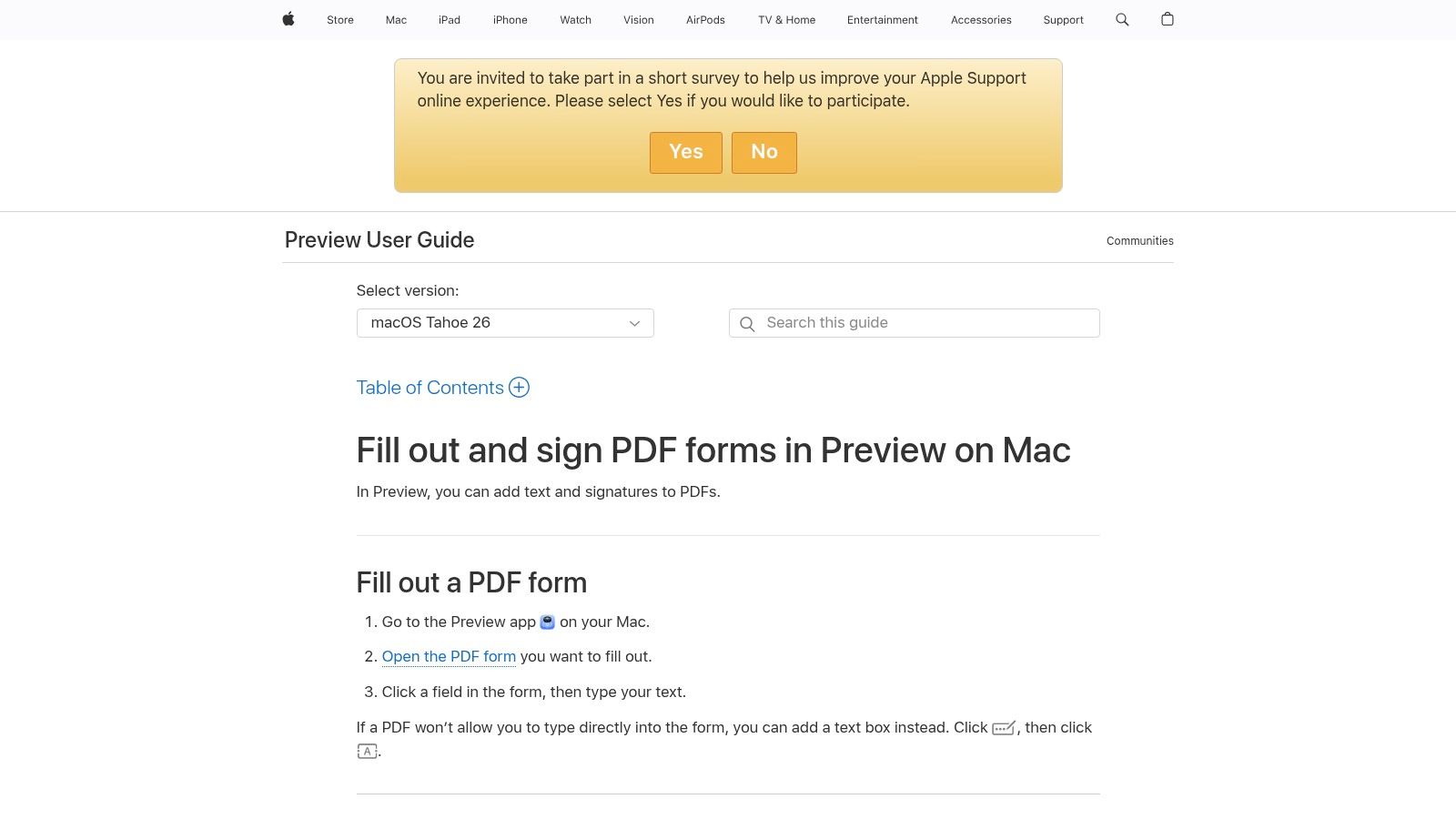
A signed PDF often needs to go back out in five minutes, not after you install software, create an account, and learn a new interface. For that job, Preview is still the fastest option on a Mac. It is already there, it opens PDFs reliably, and it handles one-person signing well.
Apple's Preview signing workflow covers the built-in path for creating a signature, saving it, and placing it on a PDF through the Markup tools in Apple's official Preview instructions.
Why Preview is the first tool to try
Open the PDF in Preview, click Markup, then click Sign. If you already saved a signature, you can place it right away. If not, create one once and keep using it for later documents.
That reuse is the primary advantage. Preview is efficient when you are signing vendor forms, W-9 requests, basic client paperwork, or a one-off approval letter and you are the only signer. I use it when speed matters more than audit trail.
It also keeps the workflow local. Some small business owners prefer that because the file never has to leave the Mac unless they choose to email it afterward.
Which signature capture method works best
Preview gives you three practical ways to create the signature: trackpad, camera, or iPhone/iPad handoff. A MacSales walkthrough shows the trackpad route through Preview's signature tools and notes that the saved signature can be reused later in the same workflow, as described in this MacSales guide to signing PDFs on a Mac.
Each option has a clear trade-off:
- Trackpad: Fastest to set up. Usually the ugliest result.
- Camera: Good if you want to capture your usual ink signature from paper. Lighting and contrast can make it look rough.
- iPhone or iPad: Usually the best-looking handwritten signature if you already use Apple's device handoff features.
For a quick internal approval, I would not overthink it. For a client-facing contract, the iPhone or iPad method usually gives a cleaner result with less fiddling.
A quick walkthrough helps if you haven't done it recently:
The common mistakes
Preview works well for simple signing, but the gotchas show up fast once the document is even slightly more formal.
A placed signature is only one part of a finished document. Many PDFs also need typed text, initials, checkmarks, or a date.
What works in practice:
- Add text fields first if the form needs your name, title, date, or checkboxes.
- Place the signature after that so you can size it properly against the line or box.
- Zoom in before saving and check the final placement. Slight misalignment is easy to miss at normal view.
- Save a separate signed copy so you keep the original untouched.
- Test the returned file once by reopening it after saving. Some people accidentally flatten or export the wrong version.
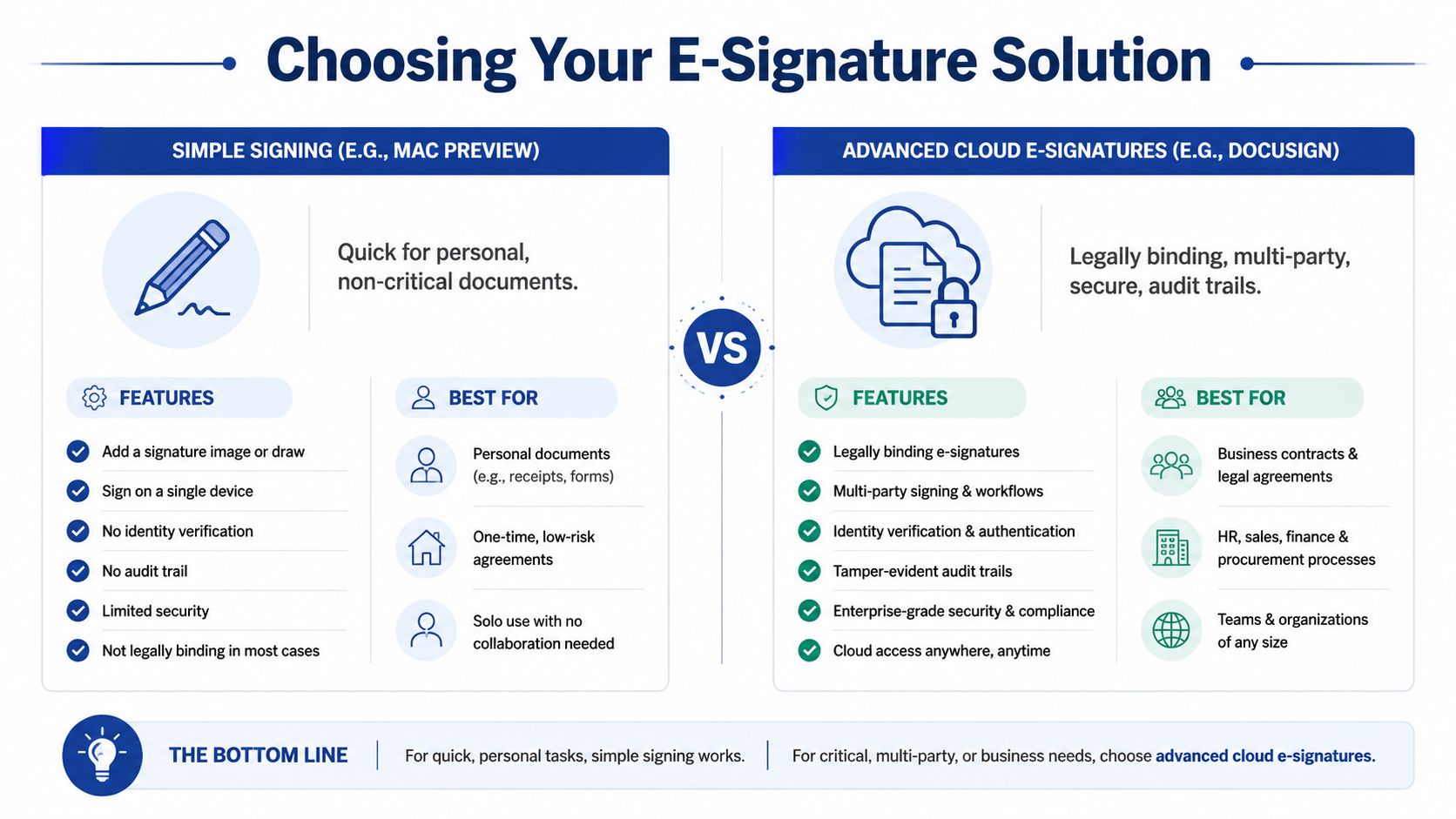
The bigger workflow point is simple. Preview is excellent for signing your own copy and sending it back. It is weaker when the document needs identity verification, signer order, reminders, status tracking, or a record you may need to defend later. That is the line many guides miss. The clicks are easy. Choosing the right signing method for the business process is the part that saves time.
Upgrading to Adobe Acrobat for PDF Power Users
Preview handles simple signing well. Adobe Acrobat comes into play when signing is only one step in a larger PDF process.
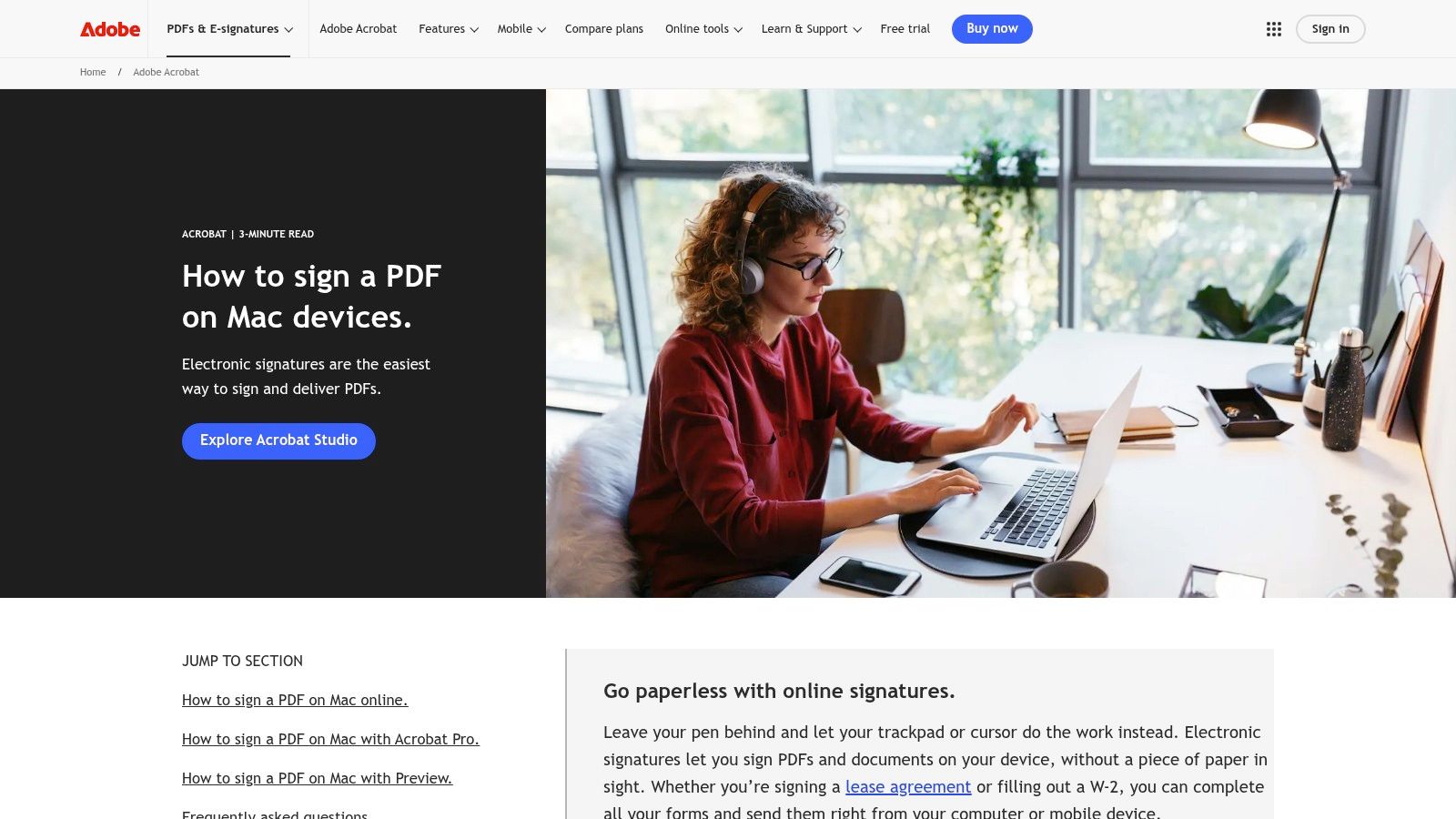
Adobe's Mac guidance notes that Acrobat Fill & Sign lets users draw, type, or import a signature and then apply it to the PDF. In the same broader context, Adobe also points out that Preview's native signing workflow places the signature as an annotation/image layer, which is one reason it remains a solid built-in option on macOS in Adobe's guide to signing documents on Mac.
Where Acrobat starts to beat Preview
Acrobat is a better fit when you're already doing more than signing. That usually means one of these situations:
- Complex forms: You need to fill many text fields, not just add a signature.
- Review cycles: You're commenting, annotating, and sending revisions back and forth.
- Mixed signature styles: You want the option to draw, type, or import a signature depending on the document.
- Shared office standard: Your team already uses Adobe tools, so staying in that ecosystem reduces friction.
Preview feels lighter. Acrobat feels broader.
That broader toolset matters when the document is still active. If you've ever signed too early and then had to reopen, revise, and resend a form, you know exactly why.
When Acrobat is worth the extra step
A simple comparison makes the decision easier:
| Use case | Preview | Acrobat |
|---|---|---|
| One-person signature | Very good | Good |
| Fast built-in Mac workflow | Very good | Slower to launch |
| Form-heavy PDFs | Limited | Better fit |
| Ongoing PDF editing | Basic | Stronger |
| Simple daily business signing | Good | Good if already in use |
Working rule: If the PDF is still being edited, reviewed, or completed by multiple people inside your process, Acrobat is usually less frustrating than trying to stretch Preview beyond its comfort zone.
The biggest trap is overusing Acrobat when you don't need it. If all you do is sign the occasional contract, it can feel like opening a workshop to tighten one screw. But if PDFs are part of your daily operations, Acrobat often earns its place.
Modern Cloud-Based Signing with Online Tools
The moment a document leaves “just my signature” territory, browser-based e-signature tools start making more sense.
A cloud workflow changes the job. You aren't placing a signature image onto a page on your own machine. You're creating a signing process that can be sent, completed, and tracked across devices. That matters for contracts, approvals, onboarding packets, and any document where another person's experience matters as much as your own.
What changes when signing moves online
With an online tool, the normal workflow looks different:
- Upload the PDF
- Place the fields for signature, date, name, or initials
- Assign the signer
- Send the document
- Let the signer complete it on their own device
That last point is the core shift. The other person doesn't need your Mac setup, your saved signature, or your preferred app. They just need a link and a clear path to finish the document.
For freelancers and small businesses, this solves a common headache. You stop acting like a file courier and start managing a process. The document moves with less manual chasing, fewer “please print this” instructions, and fewer weird formatting issues from emailed attachments.
Who should use this route
Online signing is usually the better choice when any of these are true:
- You send documents out regularly: client agreements, proposals, NDAs, onboarding forms
- Other people need to sign: especially if they use different devices
- You need supporting records: not just the final PDF
- You don't want a subscription for occasional use: a pay-per-document model can fit better than a monthly seat
One example is SignWith, which lets users upload PDFs or images, place fields, and send documents for signature without requiring signers to create an account. That structure is practical for occasional senders who want a lighter workflow than a full subscription platform.
Local Mac signing is great for “I need to sign this.” Cloud signing is better for “I need to get this signed.”
That's the decision point most guides skip. They show where the button is, but not when the workflow itself should change.
Sending Documents and Managing Signer Workflows
Signing your own PDF is one task. Managing a document through several people is a different job entirely.
Small teams usually feel friction first. A founder sends a contract to a client, then realizes finance needs a copy, legal wants the signed version stored in the right folder, and the client missed the date field anyway. The file itself wasn't the problem. The workflow around it was.
What a clean sending workflow looks like
A good sending process is boring in the best way. It should feel predictable.
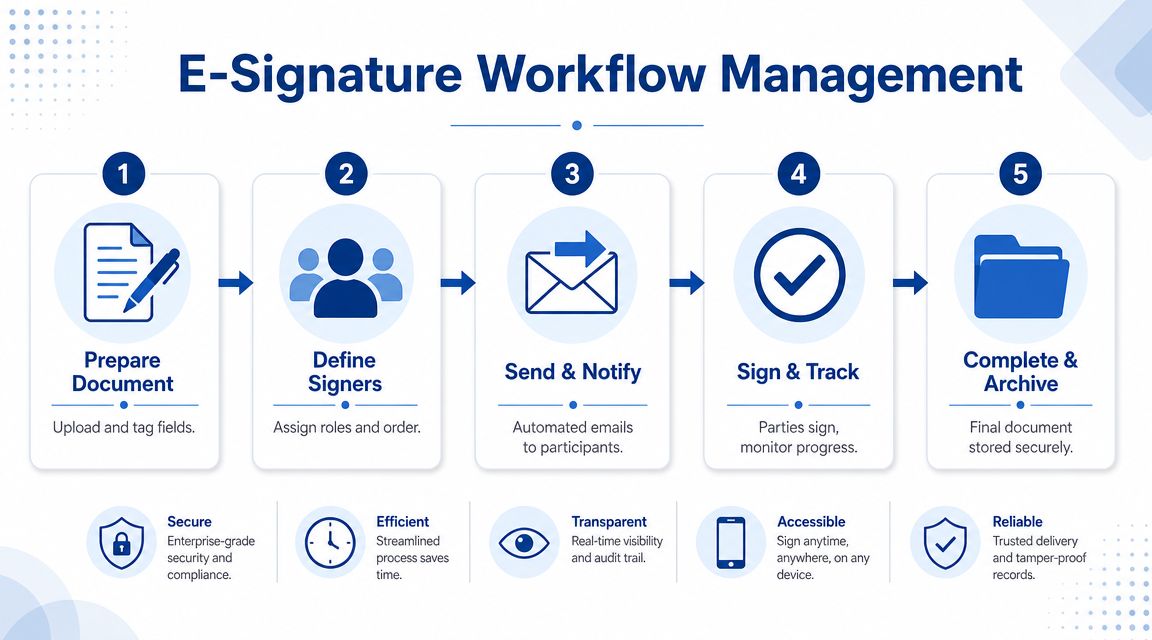
The usual pattern looks like this:
- Prepare the document by uploading the final PDF and placing every required field.
- Define the signers and decide whether order matters.
- Send the request so each person receives a clear prompt.
- Track progress without chasing by hand over email.
- Archive the completed file where your team can find it later.
If you want a practical walkthrough of that process, this guide on sending documents for e-signature is useful because it focuses on the sending side rather than only the signer side.
Where small teams usually get stuck
The failures are usually operational, not technical.
- Wrong signing order: One person signs before a required reviewer has seen the document.
- Missing fields: The signature is there, but the date or printed name is missing.
- No follow-up system: The sender has no clean way to see whether the document is pending or ignored.
- Scattered storage: Completed files end up in inboxes instead of a consistent archive.
Documents stall when ownership is fuzzy. Someone has to own the path from draft to signed copy, not just the signature request itself.
If you only sign for yourself, Preview keeps things simple. If you routinely send documents out, a workflow tool becomes less about convenience and more about avoiding avoidable admin work.
E-Signature Security Compliance and Best Practices
The technical act of signing is easy. The trust around that signature is where the stakes rise.
That's why the conversation can't stop at “how do I sign a pdf mac.” Security and proof matter, especially once money, employment, or client commitments are attached to the file. Adobe's 2024 reporting found that 57% of business leaders are concerned about data security in digital document processes, a point referenced in this Signeasy discussion of signing documents on Mac.
What Preview does and does not prove
Preview is excellent for placing a signature on a document you already control. It's fast, local, and built into the Mac. But it doesn't answer every business question on its own.
If someone later asks who signed, when they signed, what version they signed, or how the signing event was recorded, you're now outside the simple “insert signature” workflow. That's where an e-signature platform with audit-focused records becomes more appropriate.
This is also the point where legal framing matters. Under U.S. standards, ESIGN Act and UETA compliance is the key reference the author requested here. If you're using a service for business documents and need that compliance layer, that's the standard to look for.
For people who are trying to sort out terminology before choosing a tool, this explanation of digital signature vs electronic signature helps separate the concepts cleanly.
Best practices that prevent avoidable rework
A lot of document trouble is self-inflicted. The file gets signed, but not correctly completed.
Use this checklist before sending or saving:
- Confirm every required field: signature alone may not complete the form
- Check placement carefully: a movable signature box is helpful until it ends up misaligned
- Avoid saving over your only clean original: keep an unsigned source copy
- Use a workflow tool when proof matters: especially for agreements that may need a record later
- Think about signature storage: if you're uncomfortable storing a reusable signature locally, choose a method that matches your privacy expectations
The practical split is simple. Use Preview when you need speed and control on your own Mac. Use a compliant e-signature workflow when you need stronger process records and a clearer signing trail.
If you need to send PDFs for signature without a subscription-heavy setup, SignWith is one option to consider. It supports pay-per-document signing, lets recipients sign without an account, and aligns with ESIGN Act & UETA requirements for U.S. electronic signatures.
