
A contract arrives late in the day. The client wants it signed today. You could print it, sign it, scan it, and send it back, but that process is slow, messy, and easy to get wrong when you're in a hurry.
That's why electronic signing has become a normal part of day-to-day work for freelancers, small businesses, HR teams, and operations staff. But the main issue usually isn't where to click. It's whether the signature will hold up if someone challenges the agreement later.
A lot of guides stop at the mechanics. They show you how to draw a signature or drop an image onto a PDF. That helps with speed, but not necessarily with trust. For contracts, NDAs, onboarding paperwork, and approvals, the stronger question is whether the process captures intent, consent, and enough evidence to show who signed and when.
Table of Contents
- From Urgent Contract to Done Deal in Minutes
- What Makes an Electronic Signature Legally Binding
- How to Sign Documents in Different Scenarios
- A Practical Workflow for Occasional Signers
- Security and Best Practices for Flawless Signing
- Embrace the Speed and Security of E-Signatures
From Urgent Contract to Done Deal in Minutes
It's late afternoon. A client sends over a service agreement and wants it back before close of business. You're on a laptop, maybe even on your phone, and the old print-sign-scan routine suddenly feels like a process designed to waste time.
Electronic signing fixes that, but only if you use it properly. A signature image pasted onto a PDF may look finished, yet it doesn't answer the questions that matter when the stakes rise. Who signed it? Did they mean to sign it? Can you show when it happened and what document they agreed to?
That gap is where many people get tripped up. As Section 508's guidance on electronic signatures makes clear, the critical question isn't just how to click “sign,” but how to make the signature legally defensible. That matters for contracts, leases, NDAs, and any document you may need to rely on later.
A fast signature is useful. A fast signature with evidence behind it is what closes risk.
In practice, that means using a process that records consent, ties the signature to the actual document, and keeps a trail of what happened. If you're only signing occasionally, you also want a workflow that doesn't force you into a bloated subscription or make your client create an account just to finish one document.
That's the practical standard. Sign quickly, but leave proof.
What Makes an Electronic Signature Legally Binding
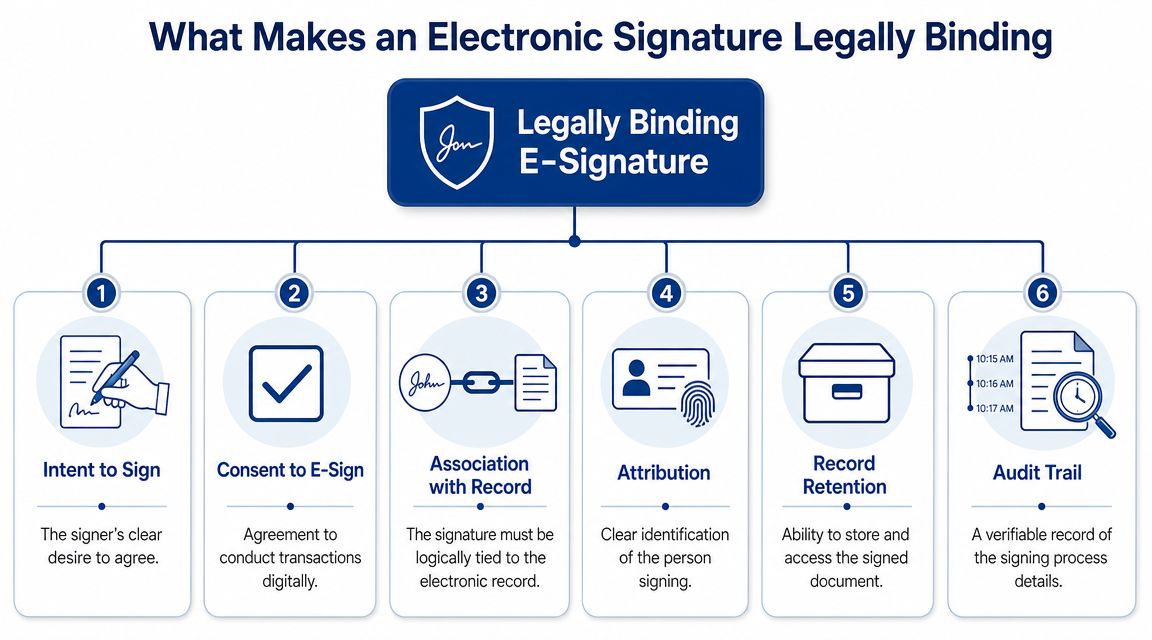
An electronic signature gets its force from process, not from how fancy the signature looks. A typed name can be valid. A drawn squiggle can be valid. A polished image can still be weak if the workflow behind it doesn't show intent, consent, and attribution.
The legal foundation in the United States
In the U.S., the legal base is straightforward. The ESIGN Act, enacted in 2000, made electronically signed contracts legally binding at the federal level, and state-level UETA adoption reinforced that framework for routine business use, as summarized in DocuSign's legal history of electronic signatures.
That matters because it moved e-signing out of a gray area. If the workflow is handled correctly, electronic records and signatures can carry the same legal effect as paper documents signed in ink.
If you've ever mixed up “electronic signature” and “digital signature,” it helps to separate the terms. This guide on digital signature vs electronic signature is a useful practical reference because the two aren't always the same thing operationally.
What actually gives the signature weight
The legal framework is only the start. Day to day, a defensible e-signature process usually needs these basics:
- Intent to sign: The signer takes a clear action that shows agreement.
- Consent to use electronic records: The signer accepts that the transaction is being handled digitally.
- Attribution: You can connect the signature event to the person who signed.
- Association with the record: The signature is attached to the actual document, not floating separately.
- Retention: The final signed file can be stored and accessed later.
- Audit trail: You have a record of the signing events and completion history.
Here's the simplest way to think about it:
| Weak approach | Stronger approach |
|---|---|
| Paste a signature image into a PDF | Send a document through a system that records signer actions |
| No consent checkbox or disclosure | Explicit consent before signing |
| Final file saved locally with no event history | Final file archived with completion details |
| No evidence beyond “it looks signed” | Evidence showing who signed and when |
Practical rule: If all you have is a picture of a signature, you may have a document that looks complete but lacks the evidence you'll want in a dispute.
For operations teams, this is the difference between a file that seems done and a file that is ready for records, compliance review, or follow-up enforcement.
How to Sign Documents in Different Scenarios
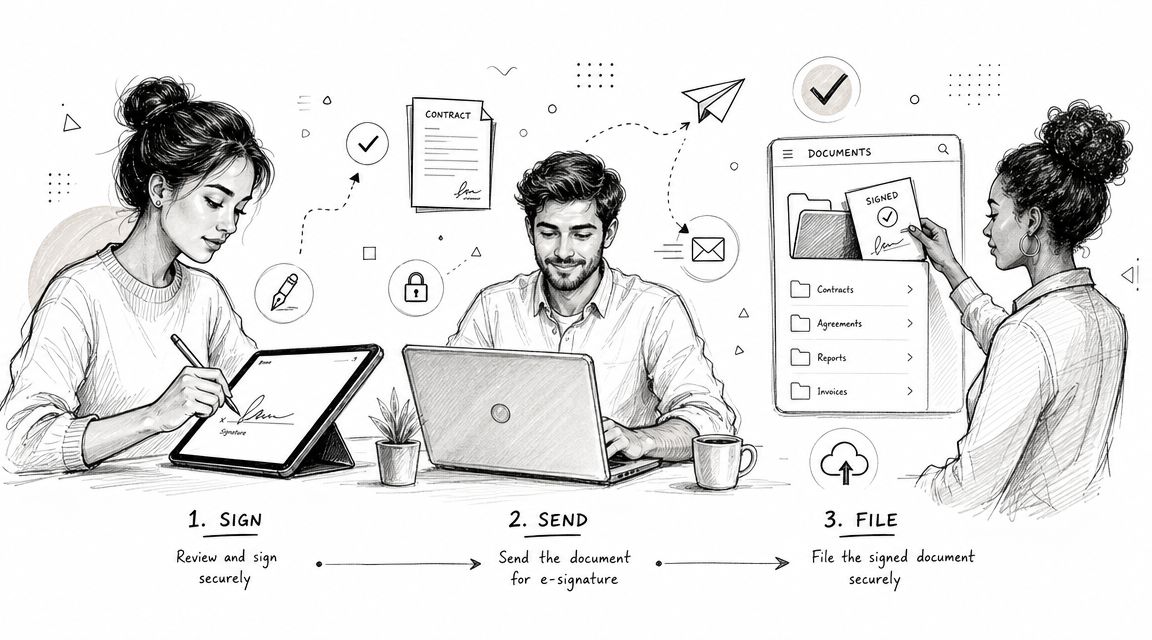
The phrase how to sign documents electronically sounds simple until you realize there are three very different jobs hidden inside it. Sometimes you're the signer. Sometimes you're dealing with a PDF already sitting on your computer. Sometimes you're the sender who has to build the workflow for everyone else.
When someone sends you a document to sign
This is the easiest case. You receive an email, open the link, review the document, complete any required fields, and sign in the marked places. Good workflows also ask you to confirm consent and may add a verification step before the signature is completed.
For the signer, that should feel light. Open, review, confirm, sign, done. If the sender has set it up well, you won't need to guess where to click or whether you missed an initials field.
If you're signing on a phone, the experience should still be clean. Many people complete documents on mobile, and if that's your main use case, this walkthrough on how to sign documents on iPhone is the practical version to keep handy.
When you need to sign a PDF on your own computer
People often make the wrong shortcut: they open a PDF, paste in an image of their signature, save it, and assume they're done. That may be visually acceptable for some internal situations, but it isn't the same as a cryptographic digital signature.
According to NC State's PDF digital signature instructions, a true digital signature workflow in PDF tools like Adobe Acrobat involves saving the document as a PDF, opening the Certificates tool, choosing Digitally Sign, and creating a digital ID if you don't already have one. That process ties the signature to a certificate. Adding a picture bypasses that security layer.
A quick comparison helps:
- Signature image: Good for appearance, weak for proof.
- Digital certificate signature: Better for tamper evidence and document integrity.
- Platform-based e-signature workflow: Better for common business signing because it combines ease of use with audit records.
If the document matters, don't confuse “my signature is visible” with “the document is properly signed.”
When you need to send a document out for signature
Sending is where workflow discipline matters most. The reliable sequence is to prepare the document, define the signature and metadata fields, choose how signers will be authenticated, route the file to the right people, and archive the completed version with its audit trail.
That means thinking like an operator, not just a sender. Before you hit send, check:
- Field placement: Add signatures, initials, dates, and any required text fields exactly where they belong.
- Signer order: If more than one person is involved, decide whether they can sign in parallel or need a sequence.
- Verification level: Use the right amount of signer verification for the document's sensitivity.
- Final record: Make sure the completed file is preserved with its completion details.
The most common failure point isn't technical. It's sloppy setup. A missing initials field, the wrong email address, or no verification step can create delays or weaken the file later.
A Practical Workflow for Occasional Signers
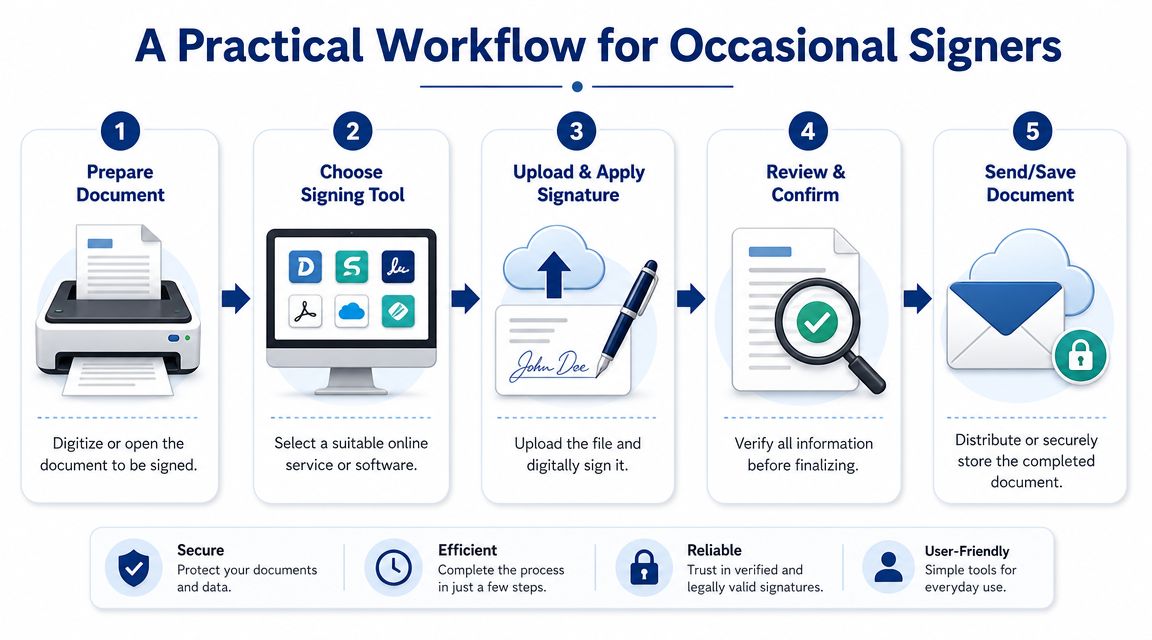
A lot of people don't need a full contract platform every day. They need to send a proposal this week, an NDA next week, and maybe an onboarding form after that. That's why occasional signers usually care less about advanced account administration and more about simple delivery, no-login signing, and paying only when they send documents.
A simple send-and-sign routine
Take a freelancer sending a client agreement. They upload the file, place a signature field for the client, add an initial field on a key page, and insert a date field. Then they enter the signer's email and send it.
That workflow fits a tool like SignWith's send documents for eSignature process, which is built around upload, field placement, signer routing, and completed-copy delivery without requiring the signer to create an account. For occasional use, that's often the practical sweet spot. You get the core actions you need without paying for a heavier setup designed for constant high-volume sending.
A short demo is useful here if you want to see the flow in action:
Why this approach works for low-volume use
The underserved part of the market is the person who signs or sends documents only from time to time. As noted in Signeasy's discussion of electronic signing for business, many guides focus on recurring, platform-heavy use while overlooking solopreneurs and small businesses that prefer straightforward pay-per-document workflows and no-login signer experiences.
That matches what works in practice. If you only handle a few documents in a month, you want a routine that feels like this:
- Open the file: Start with the PDF or image you already have.
- Mark the action points: Put signature, initials, and date fields where people will expect them.
- Send one clean link: Let the signer open, review, and sign in the browser.
- Track completion: Watch for status updates instead of chasing by email.
- File the result: Save the final signed copy with the audit record.
For low-volume work, simplicity isn't a luxury. It's what prevents documents from stalling because the process feels heavier than the deal itself.
Security and Best Practices for Flawless Signing
Convenience is only half the job. The other half is making sure the signature process is clean enough that you'd be comfortable relying on it months later, when memories are fuzzy and the document suddenly matters more than it did on send day.
Habits that prevent avoidable mistakes
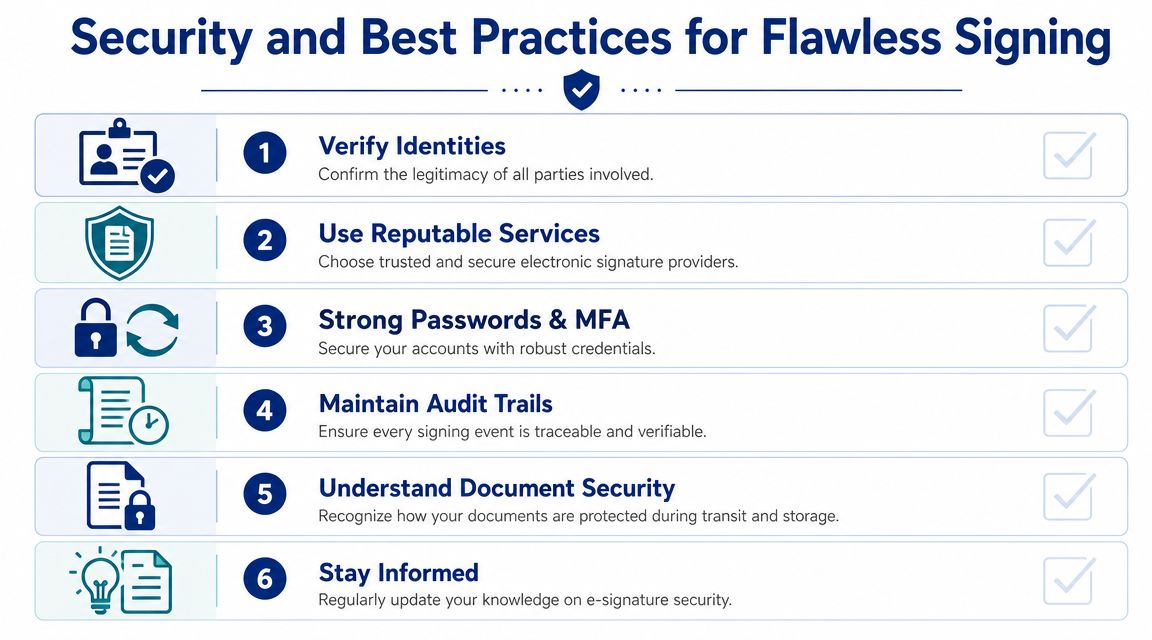
Most signing problems are ordinary operational mistakes. The wrong email address. An optional field that should've been required. A completed file saved without the underlying proof.
The safer habit set looks like this:
- Confirm the recipient: Double-check the signer's email before sending anything sensitive.
- Require the important fields: If initials or dates matter, mark them as required.
- Use verification when the document warrants it: Stronger identity checks make more sense for higher-risk agreements.
- Review before sending: Read the exact version that will go out, not the draft you edited earlier.
Autenti and Yousign's explanation of e-signature intent, consent, and verification is useful here because it shows why legal effectiveness depends on more than the visible act of signing. The signer should review the document, confirm identity and intent through a controlled action, and complete the sign event in a way that leaves evidence behind. Skipping that evidentiary layer weakens enforceability even if the file looks signed.
A professional signing workflow doesn't just capture a mark on a page. It captures proof that the right person agreed to the right record.
What to check after the document is signed
A finished PDF isn't the end of the process. Open the completion details or audit trail and make sure the package is complete.
Use this quick review table:
| Check | Why it matters |
|---|---|
| Final signed document is saved | You need the executed version, not the draft |
| Audit trail is included | It supports attribution and event history |
| All required fields are complete | Missing initials or dates can create follow-up work |
| File is archived properly | Retrieval matters later, especially for HR and contracts |
One more good habit: keep version control tight. Once a document is signed, store the completed copy in a place where it won't be casually edited, renamed into confusion, or mixed with drafts.
Embrace the Speed and Security of E-Signatures
Electronic signing works best when you treat it as an operational process, not a design trick. The visible signature matters less than the surrounding record of consent, attribution, and completion.
That's good news for small teams and occasional users because the process doesn't need to be complicated. If you receive a document to sign, use the guided workflow and complete every required action. If you're handling a PDF yourself, know the difference between dropping in a signature image and applying a true digital signature. If you're sending documents out, set the fields carefully and keep the final audit record.
The shift from paper to digital isn't only about speed. It also creates a cleaner chain of custody when the workflow is built correctly. You can move faster, avoid printing and scanning, and keep agreements easier to track and retrieve.
Once you understand the practical rules, signing electronically stops feeling risky. It becomes routine.
If you want a simple way to send and sign documents without a recurring subscription, SignWith offers a pay-per-document e-signature workflow built around ESIGN Act and UETA compliance, audit trails, no-login signer completion, and straightforward document sending for occasional or low-volume use.
