
The email usually lands at the worst possible time. A client sends a contract. HR sends an offer letter. A landlord wants a signed addendum back today. You open the Word file and realize the old print-sign-scan routine is going to eat the next hour.
That moment is often addressed with the fastest thing one can think of: pasting in a picture of a signature, drawing something with a trackpad, or typing a name under a line, in the hope that's enough. Sometimes it is. Sometimes it absolutely isn't.
Microsoft Word gives you several ways to create a signature in Word without touching a printer. The trick isn't just knowing where the buttons are. It's knowing which method is merely visual, which one is reusable, and which one is reliable when the document matters.
Table of Contents
- Signing Documents Without a Printer
- Adding a Scanned or Drawn Signature Image
- Drawing Your Signature Directly in Word
- Creating a Formal Signature Line
- From Visual Mark to Legally Binding Signature
- Common Questions About Signatures in Word
Signing Documents Without a Printer
The most common real-world signing job isn't glamorous. It's someone trying to send back a document before a deadline with whatever device is already in reach.
A freelancer gets an NDA while sitting in a coffee shop. A new hire receives onboarding forms during a commute. A small business owner opens a Word attachment on a laptop with no printer in sight. In each case, the bottleneck isn't the document itself. It's the assumption that signing still requires paper.
Word is often good enough to get that document signed and returned quickly. If all you need is a visible mark on a low-risk document, a signature image or a quick drawing can solve the immediate problem. If you're on mobile, the workflow changes again. In practice, many people capture a handwritten signature with their phone camera or sign from a touch device instead of working from a desktop menu. If that's your situation, this guide on signing documents on iPhone is the more realistic starting point.
A rushed signature process usually fails in one of two ways. The signature looks sloppy, or the document needs more proof than a pasted image can provide.
That distinction matters more than is commonly understood. A contract for a client project, an employee acknowledgment, and a simple internal memo don't all need the same level of formality. Word can handle the first layer of the problem, which is placing a signature in the file. It doesn't automatically solve identity verification, auditability, or compliance.
Here's the practical perspective:
- Need speed: Insert a signature image or draw one directly in Word.
- Need consistency: Save your signature as a reusable Quick Part.
- Need formality: Use Word's Signature Line.
- Need legal proof and audit trail: Move beyond a visual mark and use a proper e-signature workflow.
If you've ever searched how to create a signature in Word, that's the piece most guides skip. They show placement. They don't help you choose the right level of signing.
Adding a Scanned or Drawn Signature Image
For everyday use, this is still the method I recommend first. It's simple, it works, and once you set it up properly, you won't need to rebuild it every time.
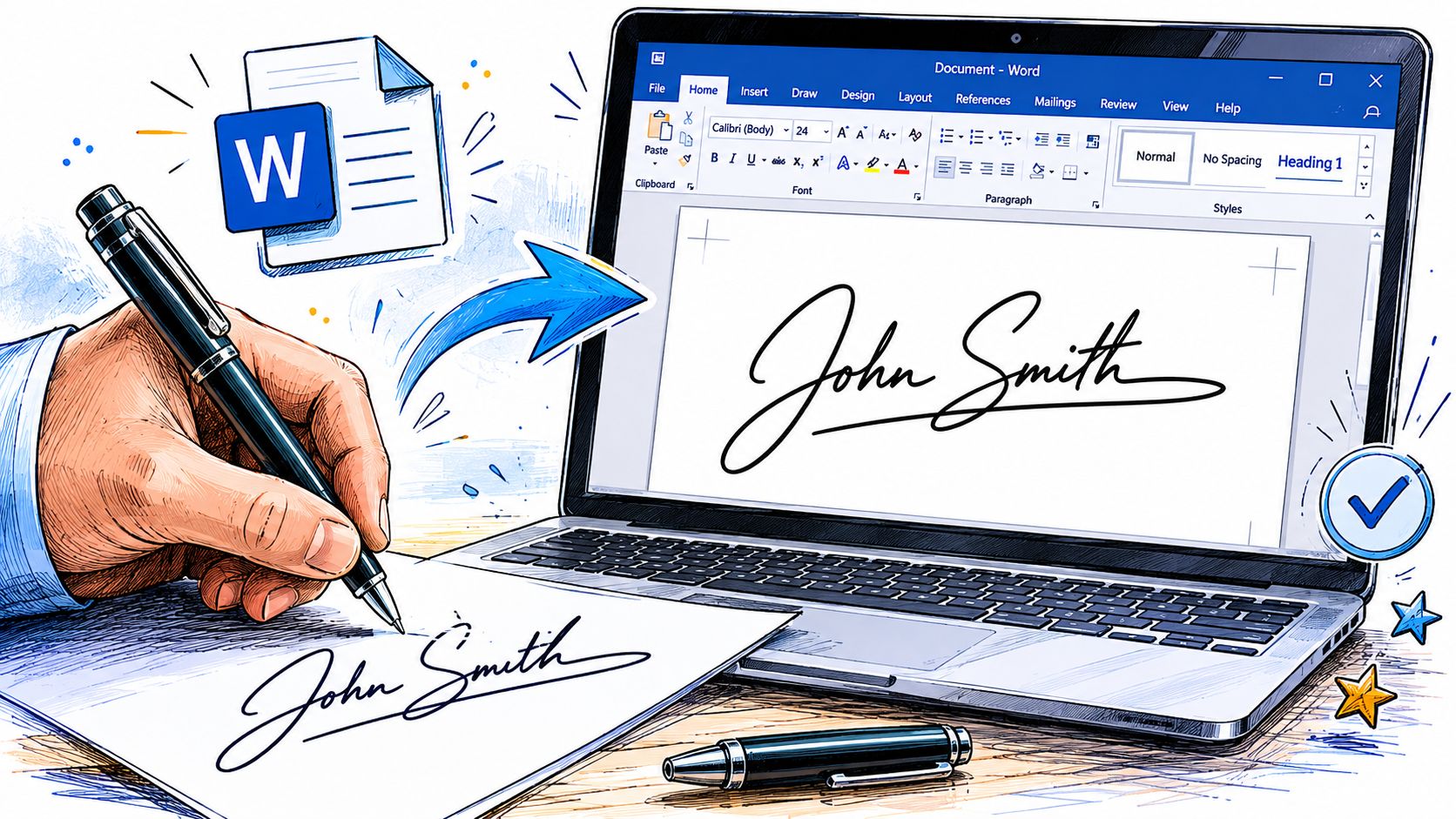
Start with a clean signature sample
The basic workflow is widely used because it works well in plain office settings. Sign your name on white paper, scan it or photograph it, save it as an image file such as .bmp, .jpg, .png, or .gif, then insert it into Word through Insert > Pictures, as outlined in this guide to creating a signature in Word.
A phone photo is usually fine if the lighting is even and the paper is flat. What makes the signature look amateur isn't usually the penmanship. It's the gray shadows, crooked crop, or giant white box around it.
Inside Word, do a little cleanup before you call it finished:
- Crop tightly so the image doesn't carry a lot of empty space.
- Remove or reduce background clutter if the paper texture shows.
- Adjust brightness and contrast so the strokes look crisp.
- Resize from the corners so the signature doesn't stretch.
If you want a quick way to create the image itself before inserting it, a tool like the AI signature generator can help you produce a PNG-style signature for reuse in Word.
Practical rule: Spend the extra minute cleaning the image once. If you skip that step, every future document will inherit the same messy signature block.
Turn it into a reusable Word asset
The smarter version of this method is not just inserting the image. It's saving the finished signature block so Word can reuse it.
The most reliable way to create a reusable signature is to combine a signature image with Word's built-in reuse features: insert the image via Insert > Pictures, clean it up, then save the completed signature as a reusable Quick Part or AutoText block so it can be inserted into future documents without recreating it each time, as shown in this Word Quick Parts walkthrough.
This is what I usually tell colleagues to save, not just the signature itself:
- The signature image
- Their typed full name
- Their job title if they use one regularly
- Any closing line they want under the signature
That matters because Quick Parts can preserve a multi-element block, not just a loose image. The result is much more consistent from one document to the next.
A simple comparison helps:
| Method | What you get | Where it falls short |
|---|---|---|
| Insert image each time | Fast one-off signature | Repetitive and easy to misalign |
| Save as Quick Part | Reusable signature block with consistent formatting | Still mainly a visual signature |
| Paste from old document | Convenient in a pinch | Carries old formatting problems into new files |
If your goal is to create a signature in Word that looks professional every time, this is the sweet spot. It's the closest thing to set-it-once and forget-it.
Drawing Your Signature Directly in Word
If you're using a touchscreen laptop, a tablet, or a stylus, drawing directly in Word is often faster than dealing with image files.
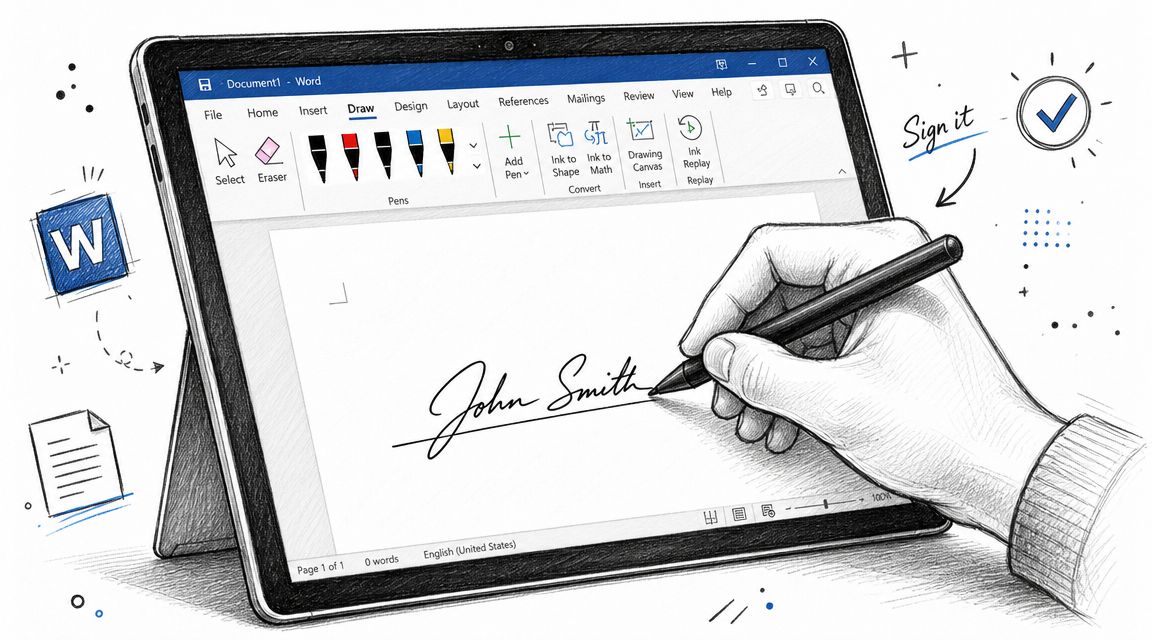
When drawing is the better option
This method makes sense when you're reviewing and signing in one sitting. Open the document, go to the Draw tab, choose a pen, and sign where needed. On a stylus-enabled device, it can feel natural enough for quick approvals, acknowledgments, or informal agreements.
Mobile and touch workflows deserve separate attention because most tutorials still assume you're on desktop menus. Users often need to capture a handwritten signature with a phone camera or use touch-based drawing and then insert it, which is why mobile signing matters so much for freelancers, field teams, and anyone working away from a desk, as noted in Adobe's overview of adding a handwritten signature in Word.
The practical trade-offs are easy to spot:
- Stylus on tablet: Best result, most natural line quality.
- Finger on touchscreen: Usable for simple documents, but less precise.
- Mouse or trackpad: Works only if appearance doesn't matter much.
If you're signing on a tablet and want to see the general motion in action, this demo helps:
How to make it look less shaky
The difference between a signature that looks intentional and one that looks like a scribble usually comes down to restraint.
Use a pen style with a moderate thickness. Black or dark blue tends to look the most document-appropriate. Don't oversize the signature. A drawn signature that spans half a page looks less authentic than one placed neatly on the intended line.
A few habits help a lot:
- Sign at a larger zoom level: Word gives you better control when you're zoomed in.
- Use short strokes: Trying to sign too quickly often creates jagged curves.
- Group related elements: If you add typed text under the drawing, group them so they move together.
- Test on a blank document first: It saves you from cluttering the final file with practice attempts.
If your first drawn signature looks awkward, that's normal. The second or third attempt is usually the one worth keeping.
This method wins on convenience. It loses on repeatability. A cleaned-up image saved as a Quick Part looks more consistent across documents. A drawn signature feels more immediate when you're signing on the go.
Creating a Formal Signature Line
Word's Signature Line feature is the point where the document starts to feel structured rather than improvised.
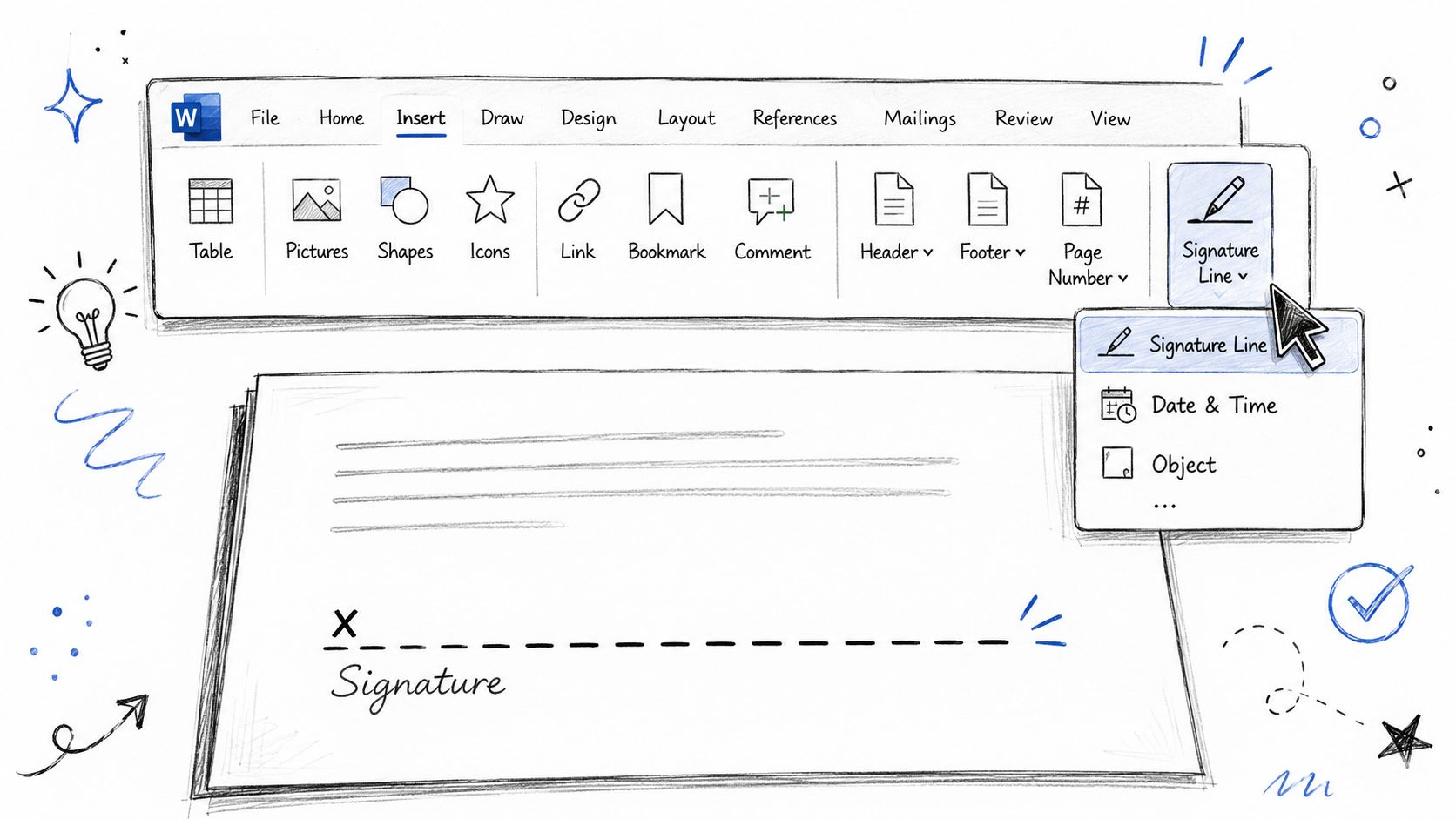
What the Signature Line actually does
Microsoft Word's built-in signing workflow has long centered on the Signature Line feature, which users access via Insert > Signature Line to formalize signing inside Word. This workflow can support either a visible handwritten-style signature image or a later digital signature, as described in OneSpan's overview of inserting a signature in Microsoft Word.
That history matters because the Signature Line isn't just decoration. It creates a designated sign-off area and asks for context around the signature. When you insert one, Word opens a Signature Setup dialog where you can include details such as:
- Signer name
- Suggested title
- Email address
- Phone number
- Instructions for the signer
In everyday office use, that small setup step changes the tone of the document. Instead of dropping a loose signature image near the bottom, you're telling the signer exactly where to sign and what role they are signing in.
When this method works best
This is especially useful for internal documents and formal templates. Think policy acknowledgments, approval forms, cover memos, or documents that circulate among managers and staff. The line itself helps reduce confusion because the expected signer and purpose are built into the document structure.
A quick way to judge whether to use it:
| Situation | Signature Line fit |
|---|---|
| Internal approval form | Strong fit |
| Offer letter review | Good fit |
| Client contract requiring proof and audit trail | Limited on its own |
| One-off informal note | More formal than needed |
There's another practical advantage. Some users build a signature block once and reuse it through AutoCorrect or Quick Parts after selecting the inserted line, the text, and the signature content. That can save time if your team uses the same Word templates repeatedly.
The Signature Line works best when the signer's identity and role matter as much as the visible signature itself.
What it doesn't do by itself is settle the legal question. It makes the document look properly prepared for signing. That's valuable. It isn't the same thing as a compliant end-to-end e-signature process.
From Visual Mark to Legally Binding Signature
Most Word signing advice becomes unclear here. A signature image can make a document look signed. That doesn't automatically make the signing process strong enough for the document in front of you.
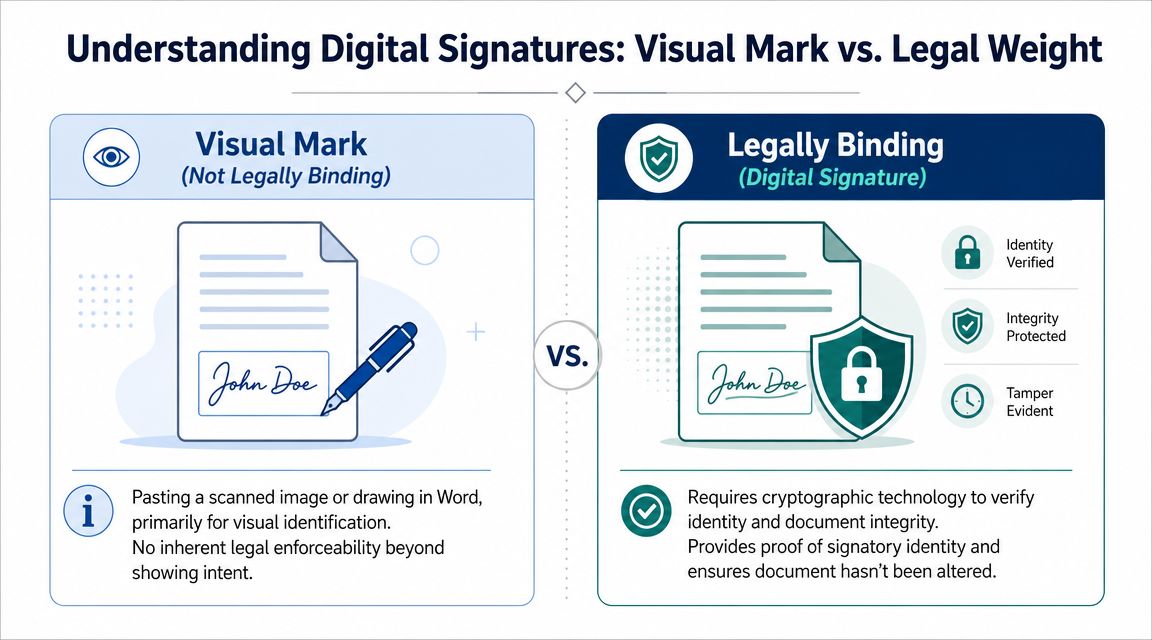
What Word can do and where it stops
There is a legal and evidentiary gap between a pasted signature and a compliant e-signature. Many Word tutorials explain how to insert a picture or scribble a name, but they don't explain when you need a stronger, auditable process for contracts or regulated submissions, which is the key point in the U.S. government guidance on digitally signing a Word document.
That gap shows up in real work all the time.
A pasted signature image mainly shows appearance. It tells the reader, "someone intended this to look signed." It doesn't automatically prove who signed, when they signed, or whether the document changed afterward. For a low-risk internal memo, that may be fine. For a services agreement, onboarding packet, or disclosure document, that's often not enough.
Word also has a more formal digital-signature path. In government guidance, adding a digital signature may require saving the document first and then going to File > Info > Protect Document > Add a Digital Signature. That's a different category from placing an image in the file.
When to move to a dedicated e-signature workflow
The question isn't whether Word can hold a signature. It can. The better question is whether the document needs proof.
Use a basic Word signature when:
- The document is low risk
- The signature is mostly for visual acknowledgment
- All parties already trust the exchange
- You don't need an audit trail
Move to an e-signature platform when:
- You're signing contracts, HR forms, or client agreements
- You need a record of who signed and when
- You want a clearer chain of consent
- You need a process aligned with U.S. e-signature requirements
For U.S. compliance, SignWith is one example of a platform built for signatures under the ESIGN Act and UETA. In practical terms, that's the category of tool you use when a signature has to be more than a visual mark. If you're sorting out the terminology first, this breakdown of digital signature vs electronic signature is worth reading.
A scanned signature answers "what does the page show?" A compliant e-signature workflow answers "what happened, who did it, and can you prove it?"
That difference is why so many disputes don't center on the signature image itself. They center on identity, intent, delivery, and document integrity.
If you only remember one thing from this guide, remember this: creating a signature in Word and completing a legally meaningful signature process are not the same task.
Common Questions About Signatures in Word
Is a signature in Word legally binding
Sometimes. It depends on the method and the document.
A pasted image or drawn mark can show intent, but that doesn't automatically give you the same evidentiary strength as a compliant e-signature workflow. For low-stakes uses, that may be enough. For contracts, HR paperwork, and documents that could be questioned later, don't assume a visible signature alone settles the matter.
Does Word on Mac work differently
The broad options are similar, but menus and feature placement can differ by version. That's especially true with drawing tools, Signature Line behavior, and certificate-related options. If you work across Windows and Mac, test your exact workflow before sending a template to other people.
What is the difference between electronic and digital signatures
The simplest way to think about it is this:
- Electronic signature: The broader act of signing electronically. That can include typing a name, drawing a signature, or clicking to sign.
- Digital signature: A more technical method that uses cryptographic processes to help verify identity and document integrity.
People often use the terms interchangeably in casual conversation, but they aren't the same thing.
Is there a built-in way to clean up a signature image in Word
Yes. Word can handle basic cleanup well enough for most office use. Crop the image tightly, remove extra white space, and adjust brightness or contrast if the pen strokes look faint. You don't always need separate image-editing software.
What is the most reusable setup inside Word
A cleaned signature image saved as a Quick Part or AutoText entry is usually the most practical long-term setup. It saves time, keeps formatting consistent, and avoids copying old signature blocks from document to document.
If you occasionally need a signature image for Word, Word itself can handle the basics. If the document needs a real e-signature workflow, SignWith gives you a way to send documents for signature without a subscription, with support for U.S. compliance under the ESIGN Act and UETA.
